Widgets: open your gate without opening the app
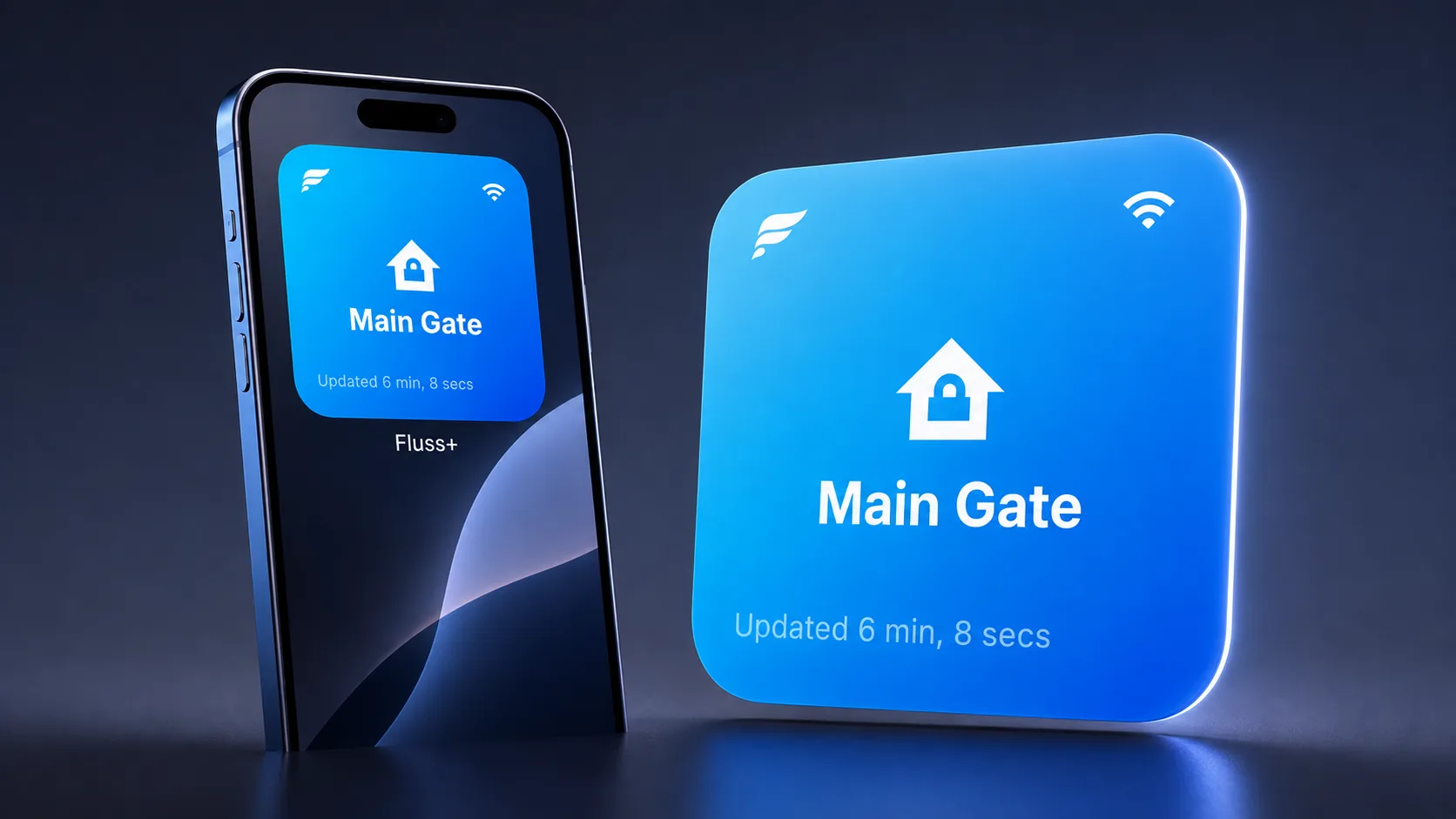
Some doors you open twice a year. Your gate, you open twice a day — and then again when you forget the milk. Those are the ones worth putting a button on.
One tap, and the gate opens
Here's the idea. You put a Fluss+ button directly on your home screen. No need to open the app — the tap is the trigger.
Which sounds like a small thing until you count how many times a week you do it. For the gate you use every single day, the shortest path is the whole point.
Wi‑Fi or Bluetooth — pick how the button reaches your Fluss
When you set the widget up, you choose which device it controls and how it talks to that device.
A Wi‑Fi widget sends the command over the internet. Your phone doesn't have to be anywhere near the gate, and when you're picking a device during setup, only the ones currently online will appear in the list, which is a useful signal in itself. It's the one we'd recommend for a widget as it's the more dependable of the two.
A Bluetooth widget talks to the device directly, phone to Fluss+, no internet involved. You need to be in range for it to work, and every device you own shows up in the list when you're choosing. Bluetooth triggering is in beta testing at the moment.
| Question | Wi‑Fi | Bluetooth |
|---|---|---|
| How does it reach the device? | Over the internet | Directly, phone to Fluss+ |
| Do you need to be nearby? | No | Yes, within range |
| Which devices appear during setup? | Only the ones online right now | All of them |
| Ready for everyday use? | Yes | In beta |
Two taps, so your pocket can't open your gate
A button that lives on your home screen is a button you might catch with a thumb by accident. So widgets ask you to confirm: the first tap arms it, the second one actually sends the trigger. It's on by default.
You can switch it off if you'd rather have the single tap, and for some setups that's the right call — an internal door, a garage you can see from the kitchen window. For a street-facing gate, the extra tap costs you about half a second and buys you the certainty that nothing opens unless you meant it to.
Adding one on iOS
Press and hold on an empty part of your home screen until the icons start to wiggle, then tap Add widget at the top. Search for Fluss+, pick the widget, and add it.
Then tap the widget itself to set it up: choose Wi‑Fi or Bluetooth, and choose which device it should trigger. That's the whole thing.
If you'd rather be walked through it, the app has a guide built in — open the device, go to Settings, then Add widget.
Adding one on Android
Android does it for you. Open the device, go to Settings, then tap Add home screen widget — it lands on your home screen ready to configure, connection type then device, same as above. No long-pressing, no searching.
Home screen, not lock screen
Worth being straight about, because it's the first thing people ask. Fluss widgets live on your home screen — on iOS and on Android both. There's no lock screen version on either platform, which means you'll still unlock your phone before you can tap one.
The takeaway
Every step between you and your gate is a step you'll take a thousand times. A widget doesn't change what your Fluss can do — it just puts it on the surface, where a daily habit belongs.
Hands-free for when your phone's in your pocket. A widget for when it isn't.