Fluss+ is now on Android Auto and Apple CarPlay
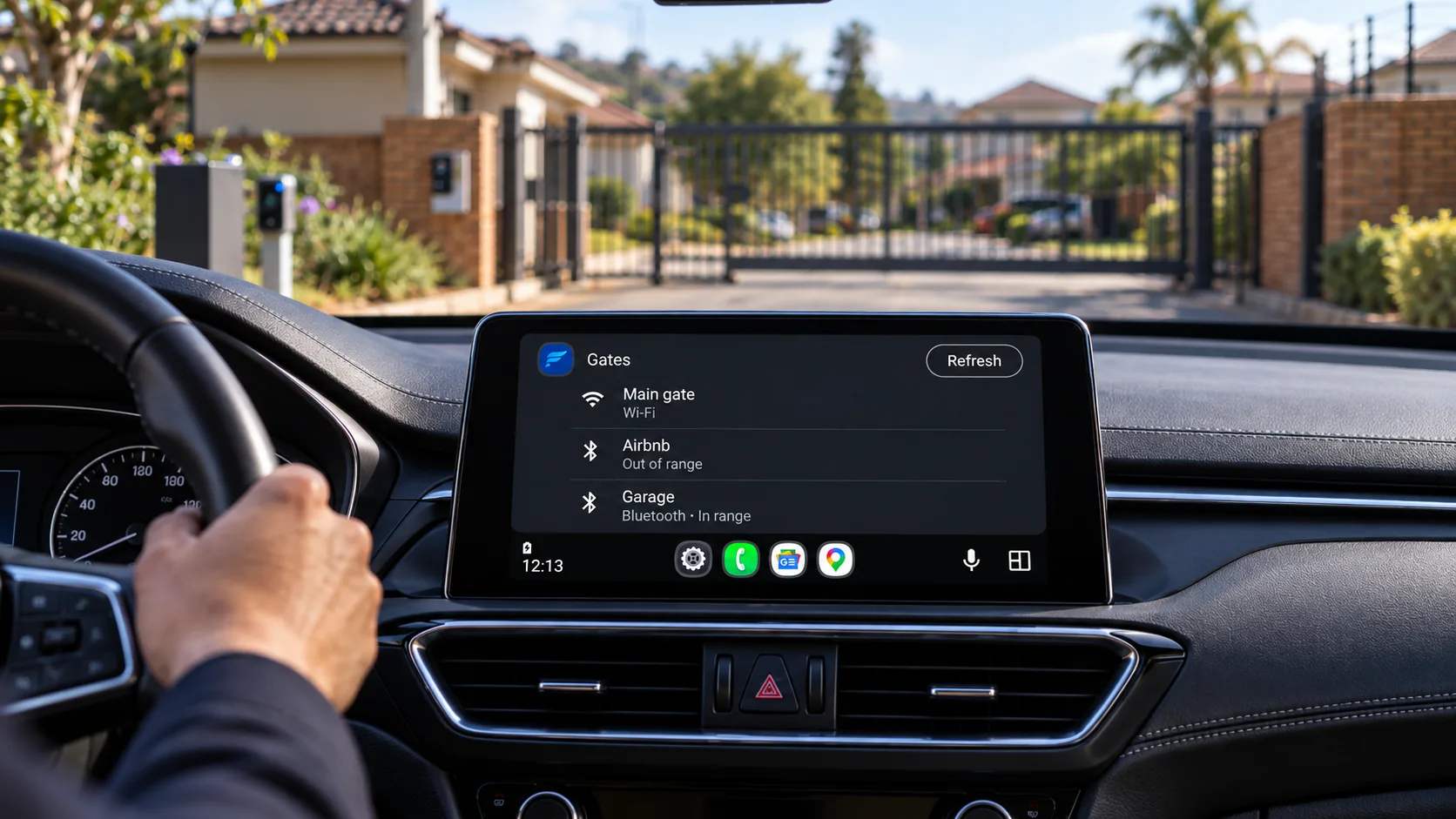
You know the routine. You pull up at the entrance, and then the hunt begins. Where's the remote: cubbyhole, door pocket, under the seat? That's why so many of you already trigger from your phone instead. Now it's even easier.
Fluss+ now works with Android Auto and Apple CarPlay, so the devices you trigger from your phone are right there on the car's screen too. Tap, and you're through.
Tap the screen you're already looking at
Connect your phone to the car the way you always do, and the Fluss+ app you already use carries straight over to the car's display.
How it looks depends on your phone. Android Auto shows a list of your devices, and CarPlay uses the Fluss widget.
On Android Auto
Open Fluss+ from the car's app launcher and you'll see the devices you have access to, each with a label showing how Fluss+ would reach it right now:
- Bluetooth · In range: you're close enough to trigger it directly, no internet needed.
- Wi-Fi: the device is online and will be triggered over the internet. You'll only see this if you've been granted Wi-Fi access.
- Out of range: it can't be reached at the moment.
You don't choose the connection: Fluss+ picks Bluetooth or Wi-Fi each time you tap. The list also updates as you drive, so a device that reads Wi-Fi on the way home switches to Bluetooth · In range as you get close.
There's no confirmation step, either. One tap triggers the device, and the screen shows Opening. So it's worth a glance before you press.
On Apple CarPlay
On CarPlay, Fluss+ appears as the Fluss widget, the same one you can put on your iPhone Home Screen. Each widget triggers one device. It shows the device's name and, on Wi-Fi, whether it's Open or Closed. Tap it, and you'll see Triggering…, then Trigger sent.
You set it up once on your iPhone, under Settings > General > CarPlay, and choose how each widget connects:
- Wi-Fi is the recommended choice and the more dependable of the two.
- Bluetooth (Beta) triggers directly from your phone with no internet, as long as you're within range.
Confirm before opening is on by default for Wi-Fi: the first tap arms the widget, and the second sends the trigger. On Bluetooth, a single tap always triggers the device.
Adding widgets to CarPlay needs iOS 26 or later.
Getting started
Install the Fluss+ app and sign in on the phone you connect to the car, and make sure your car is already set up for Android Auto or CarPlay. For the step-by-step, see our knowledge base:
The takeaway
The best remote is the one you never have to look for. Now it's already on the screen in front of you.
Pull up, tap, drive through.