One Time Entry & Exit: for the visitor who only needs to get in once
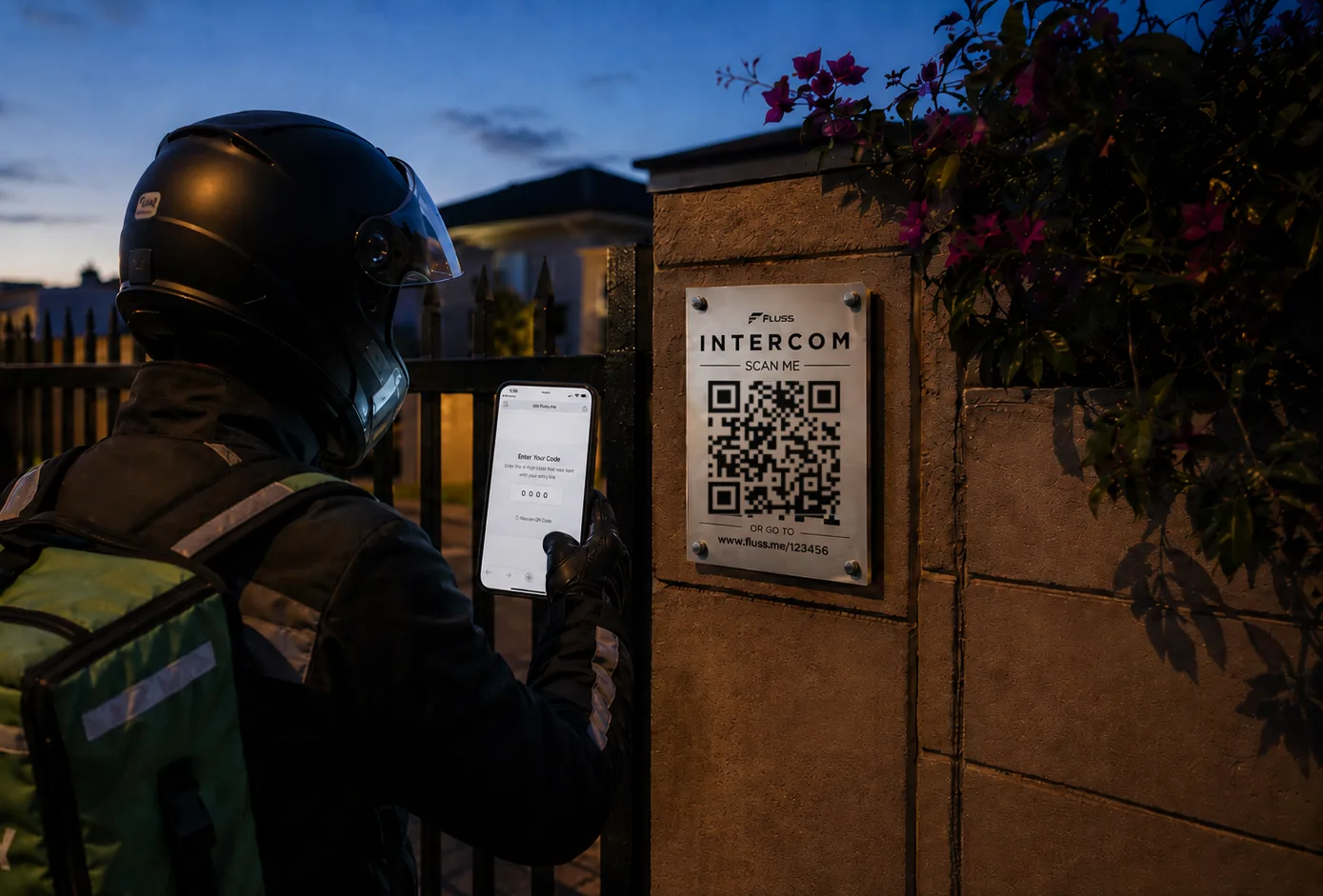
Someone's coming over — a friend, a plumber, a Sixty60 driver — and they need to get through your gate. You don't want to hand out a permanent code, and you certainly don't want to ask a delivery driver to download an app. That's exactly what One Time Entry & Exit (OTEE) is for.
One entry, one exit, and then it's done
Here's the idea. Your visitor gets a four-digit PIN that works exactly twice — once to get in, once to get out. They use it, they leave, and that's the end of it.
Which is the nice part, really. There's no spare remote to chase up, no shared gate code to change once too many people know it, nothing sitting on anyone's phone afterwards. The credential cleans up after itself.
And if you change your mind before they arrive, you don't have to wait it out. Revoke the code from the app and it stops working immediately — no entry, no exit. Handy if plans change, or if you sent it to the wrong person.
Your visitor doesn't have to install a thing
This is the bit that matters for deliveries, and it's worth being clear about: there's no app involved on the visitor's side. No download, no account, no signing up for anything.
They get a link and a PIN, usually over WhatsApp. At the gate, they tap the link, scan the Fluss+ Intercom QR code, and type in the PIN. Gate opens.
On the way out, they open the same link again. Their entry's already been validated, so there's no QR code this time — just the PIN, and out they go.
That QR scan is doing more work than it looks like, by the way. A PIN on its own only proves someone received a message. Scanning the intercom at the entrance proves they're actually standing there.
Setting it up (once)
You'll need both a Fluss and an intercom, and everything lives in your intercom settings.
Pick the Fluss at your entrance as the entry device. The exit defaults to that same one, which is exactly right if you've got a single gate — but if your complex has a separate exit, just point it there instead. Then decide how many invites each person can have on the go at once, and how long an invite should stay valid after it's created — 24 hours, unless you change it.
That's it. You won't need to touch it again.
Sending one
Open your usual invite flow and choose the one-time option. Set a start time — most people just leave it as right now, since nobody's inviting the plumber three weeks ahead.
Then pick a contact, type in a number, or choose the delivery option if you don't have a number at all. Generate the code and send it. If you've entered a number, WhatsApp or SMS will fill the message in for you. If not, copy it and paste it wherever it needs to go — the Sixty60 app, Uber Eats, an email, whatever works.
So when would you use temporary access instead?
Fair question, and there's a real answer. If someone's coming back regularly — a cleaner every Tuesday, a contractor on site for a fortnight — temporary access is the better experience by a distance. They install the app once, then come and go as often as they like within the window you've set, no QR code to find each time.
The two aren't really competing. They just sort by how often you'll see the person.
The takeaway
Any credential you have to collect, change, or trust someone to hand back is a credential you're managing indefinitely. For the visitor who's never coming back, the better answer is one that simply runs out on its own.
Temporary access for the regulars. One Time Entry & Exit for everyone else.
Where to find the step-by-step
New to this? Our knowledge base covers the how-to in detail: configuring your one-time access settings, sending a code, and revoking one you've already sent.